

GitHub
Track pull requests on Issues and share session replays as GitHub issues
What the GitHub integration does
The GitHub integration connects your GitHub organization to LogRocket for two things:
- Pull requests on Issues — when a coding agent dispatched from LogRocket opens a pull request, that PR and its live status appear on the Issue, so you can follow a fix from detection to merge without leaving LogRocket.
- Share a session as a GitHub issue — file a bug straight from a session replay, with a link back to the exact moment you paused.
Setup
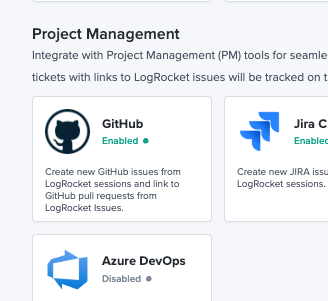
Go to Settings → Integrations, click the GitHub card, and follow the prompts to authorize LogRocket.
A few things to know before you start:
- The integration is installed at the GitHub organization level. You need permission to install a GitHub App in your org — typically an org owner. It's a one-time setup for the whole organization.
- GitHub.com only. GitHub Enterprise Server is not currently supported.
Already connected? You'll need to re-authorize.Tracking pull requests requires more access than the original GitHub integration asked for — specifically, the ability to read pull requests and their status on your repositories.
If your organization connected GitHub before pull request tracking shipped, an admin needs to re-authorize the integration from Settings → Integrations → GitHub. Until that happens, sharing sessions as GitHub issues keeps working, but pull requests won't appear on your Issues.
Pull requests on Issues
Pull requests from dispatched agents
When you dispatch a coding agent from an Issue, LogRocket tracks the pull request that agent opens. No extra step — the PR attaches itself to the Issue, and its status appears in two places:
- On the Issue Detail page, alongside the agent that opened it.
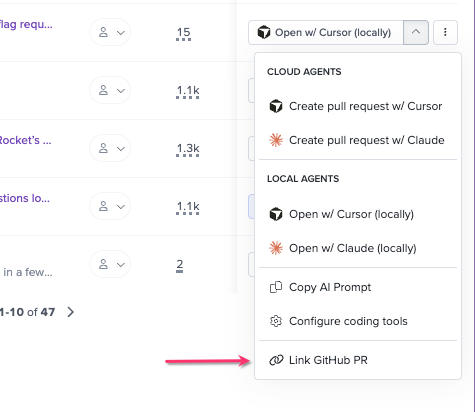
- On the Issues Feed action button, so you can see from the list which Issues have a fix in flight.
LogRocket receives PR updates from GitHub over webhooks, so status changes — review requested, checks passing, merged, closed — appear on the Issue within seconds.
Link a pull request yourself
A pull request attaches itself only when it comes from a coding agent dispatched from a LogRocket Issue. Pull requests written by hand, or opened by an agent you started somewhere else, must be attached by the user.
From the Issue Detail page, choose Link GitHub PR. Start typing a pull request number or title and select it from the results.
LogRocket checks the pull request before saving the link. If it can't find the PR — usually because the repository isn't covered by your organization's installation — you'll see no PR found and the link won't be created.
How LogRocket-opened pull requests identify themselves
Pull requests opened by agents you dispatch from LogRocket carry their origin in the PR description: a link back to the LogRocket Issue that triggered the work, and — when the agent was dispatched by a person rather than by auto-dispatch — who dispatched it.
Reviewers land in the PR with the context of what user problem it's meant to solve, without going looking for it.
Share a session as a GitHub issue
If you spot a bug while watching a session replay, click Share in the bottom right to file it as a GitHub issue and send it to your team.
The GitHub issue includes a link to the session, the exact place you paused the recording, and any notes you add.
Troubleshooting
My agent opened a pull request, but I don't see it on the Issue. Work through these in order:
- Was the agent dispatched from a LogRocket Issue? Only those pull requests attach automatically.
- Has your organization re-authorized the GitHub integration since pull request tracking shipped? See the callout under Setup.
- Is the repository covered by your organization's installation?
If all three check out, link the pull request manually with Link GitHub PR.
I get "no PR found" when linking a pull request. LogRocket can't see that pull request. The most common cause is that the repository isn't included in your organization's GitHub App installation — check the installation's repository access in GitHub.
Pull request status looks stale. PR status arrives over webhooks and should update within seconds. If an Issue is showing status you know is out of date, refresh the page; if it persists, contact [email protected].
Note: pull request status and coding agent status are separate. If the agent's status is stuck rather than the PR's, see Dispatch coding agents → Troubleshooting.
I don't see the GitHub card in Settings → Integrations. Make sure you're in the right project, and that your role allows managing integrations.
Related
Updated about 2 months ago