

Audit Log
Overview
The audit log shows what people in your organization are doing in LogRocket: which sessions they've watched or downloaded, which settings they've changed, who they've added to your team, and more. It's useful for answering questions like who watched a particular session, or when a setting was changed and by whom.
The audit log is available on the Professional plan under Settings > Audit Log. Only admins can view it or turn it on. To export audit logs programmatically, see Audit Log API.
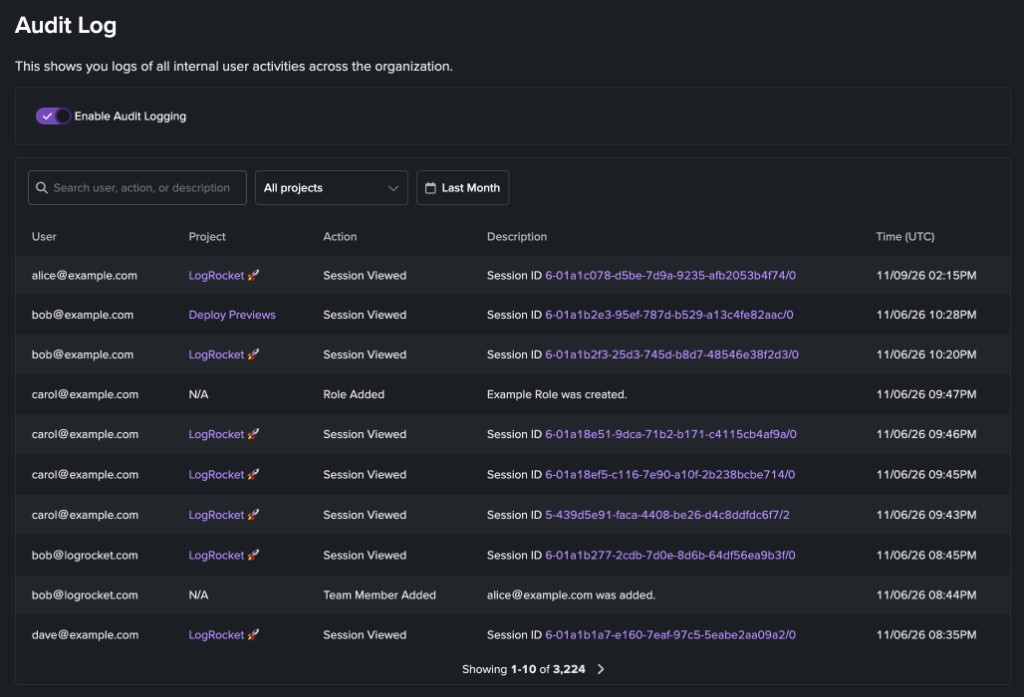
The audit log, with search, project, and date range filters above the log.
Audit logging is off by defaultAn admin has to Enable Audit Logging before anything is logged. Activity from before it's turned on isn't recorded.
What gets logged
Each entry records who did something, the project it applies to (if any), what they did, a description, and when it happened (in UTC). Logged activity includes:
- Sessions: viewing, downloading, and deleting sessions. Session entries link to the session they're about.
- Users: excluding a user and deleting their data, and un-excluding a user.
- Team members and roles: adding, updating, and removing team members, and creating, updating, and deleting roles.
- Projects: creating and deleting projects.
- Conditional Recording: adding, updating, and deleting recording conditions.
- API keys and service accounts: creating and revoking API keys, and creating and removing service accounts.
- Organization settings: changes to settings like extended session retention and streaming data export.
Searching and filtering
By default, the log shows the last month of activity, newest first. Use the controls above the log to narrow it down:
- Search: matches the user, action, and description of each entry. For example, search for a teammate's email address to see what they've done, or for a session ID to see who's watched that session.
- Project: select a project to show only entries from that project. Defaults to All projects.
- Date range: shows entries from the last day, week, month, 3 months, or year, or from a custom range.
Select Clear filters to reset everything. Filters are saved in the page URL, so you can bookmark or share a filtered view of the log.
Updated about 1 hour ago