

Open in an Agent Coding Tool
Open any issue directly in Cursor, Claude CLI, Codex, or Windsurf with a full debug package already loaded.
The Open in… menu on any issue lets you jump straight from a LogRocket issue into your local AI coding tool, with a prepared prompt and a link to the issue's debug package already loaded for the agent.
Before you start: The tool must be installed locally. No LogRocket integration or admin permissions are required — any user with access to the issue can use Open in….
Supported tools
- Cursor
- Claude CLI
- Codex
- Windsurf
You choose which of these appear in your dropdown — see Configure which tools appear below.
How to open an issue in a coding tool
- Navigate to the issue you want to work on.
- In the issue header, click Open in…
- Select your tool from the dropdown.
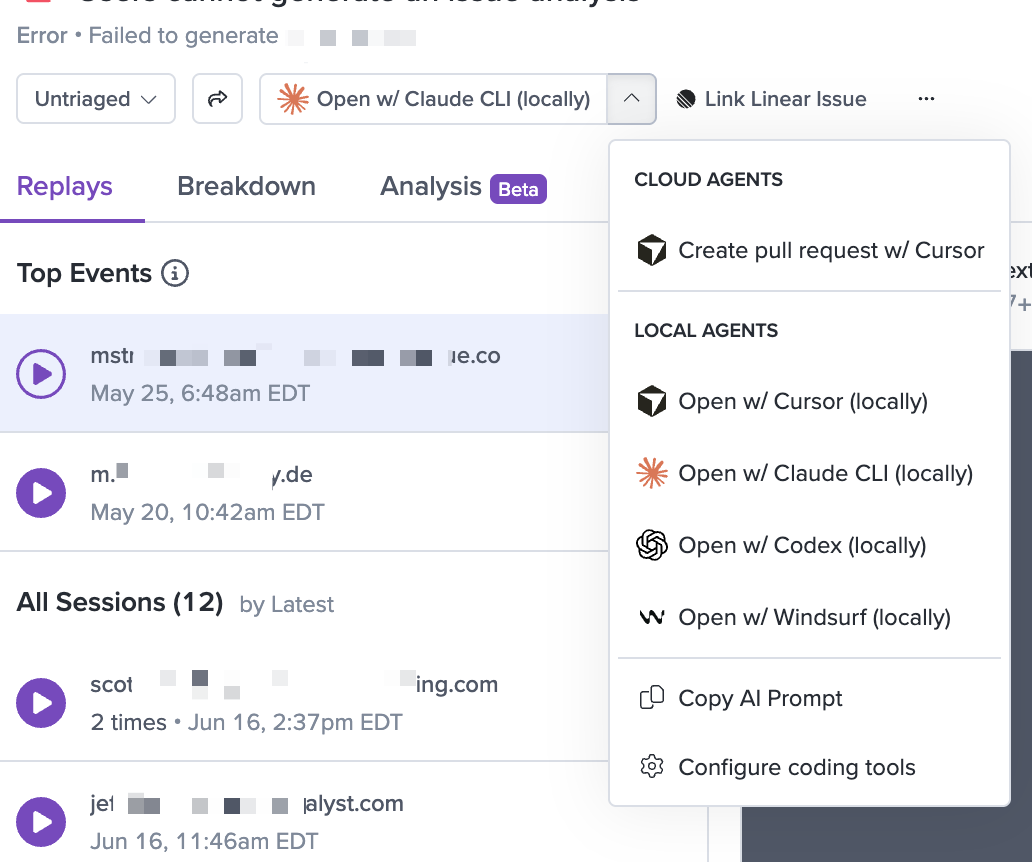
The tool opens with a prompt that includes a description of the issue, a link to the debug package the agent can fetch and inspect, and the recommended next step. If the tool is already running, it focuses the existing window. If it isn't, it launches.
Say you're tracking down a React hydration error that only surfaces on mobile. You open the issue, click Open in… → Cursor, and Cursor launches with the Galileo-generated prompt already loaded — the component tree, the failed network request, and the session that triggered it. You skip the context-gathering and go straight to the fix.
What if I don't have the tool installed?
- Cursor: if Cursor isn't installed locally, LogRocket falls back to Cursor's web version automatically. You stay in the browser and the prompt still loads. Download Cursor here.
- Claude CLI: Claude Code must be installed locally to use this utility, otherwise you'll get a
command not foundorno such file or directoryerror in the terminal. Download Claude Code here . - Codex: Codex must be installed locally to use this utility. Download Codex here.
- Windsurf: Windsurf must be installed locally to use this utility. Download Windsurf here.
Copy the prompt to any tool
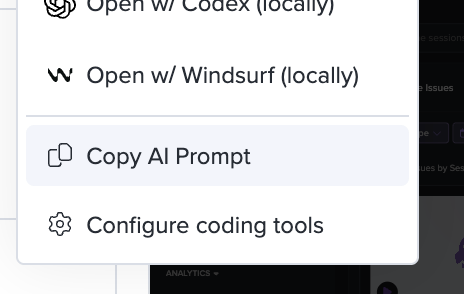
If your preferred tool isn't in the list, or you want to paste the prompt somewhere else — a different agent, a chat thread, a ticket — use Copy AI Prompt at the bottom of the Open in… dropdown. It copies the same Galileo-generated prompt, debug package link included, to your clipboard.
Configure which tools appear
Hide tools you don't use so the dropdown only shows what's relevant.
- At the bottom of the Open in… dropdown, click Configured Coding Tools.
- On the Integrations view you'll see local coding tool options.
- Open each desired tool and toggle each on or off.
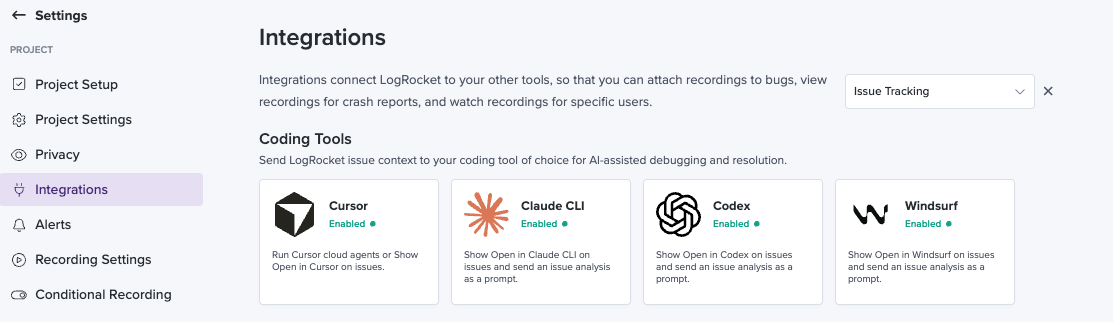
These settings are per-user — they don't affect your teammates. See the Cursor and Claude integration docs for the "Open in…" toggles specific to those tools.
Troubleshooting
The dropdown is empty. All tools are toggled off in your settings. Open Configured Coding Tools at the bottom of the dropdown and enable the tools you want.
Clicking the tool doesn't open anything. Make sure the tool is installed and that your operating system has registered its custom URL handler. For Cursor specifically, the browser fallback should still work — if it doesn't, the dropdown link still works as a regular URL you can copy.
The prompt is missing the debug package. This is rare and usually points to a Galileo AI configuration issue on the project. Contact LogRocket support.
Related
Updated about 2 months ago