

Issues (2026 Beta)
Detect the problems that matter, and drive each one to a fix
Overview
The Issues page is where your team goes from detecting a problem to shipping a fix. LogRocket surfaces the problems worth your attention, opens an Issue for each one, and puts the next step toward a fix — usually dispatching a coding agent — right on the Issue.
To do that, LogRocket separates the raw evidence from the work you do about it:
- A Signal is any single problem indicator LogRocket detects in your app. Signals are created automatically as LogRocket ingests data, and there are a lot of them.
- An Issue is a problem worth tracking. Each Issue groups one or more related Signals and carries what you need to drive it to resolution: a priority, a status, an assignee, an AI analysis, linked tickets, and a dispatched coding agent.
Put simply: a Signal is what happened in your app. An Issue is what you're doing about it. Most Signals never become Issues — only the ones worth acting on do.
How Issues work, end to end
- Detect — LogRocket captures Signals continuously, and Galileo AI scores each one for severity.
- Open — when a Signal is severe, Galileo opens an Issue at High priority. You can also open an Issue from any Signal yourself.
- Act — each Issue leads with a single fix action: dispatch a coding agent to open a pull request, or hand it off with a ticket.
- Resolve - Error Issues resolve automatically once the underlying Signal stops occurring; other Signal types you resolve yourself.
Where each Signal livesSignals live in their source-specific surfaces: Errors, Feedback, Release Recaps, and Streams, each under Issues → Signals. Issues live in the Issues Feed view. You can move from a Signal to its Issue, and from an Issue down to its Signals, at any time.
Signals
A Signal is any single problem indicator LogRocket detects in your app — an error, a cluster of customer feedback, or a problem Galileo found in a Release Recap. Signals are created automatically as LogRocket ingests data, and each one is scored for severity by Galileo AI.
The Signal types available today are:
| Signal type | What it is | Where it lives | Auto-resolves? |
|---|---|---|---|
| Errors | Exceptions, network errors, mobile crashes, error states, dead clicks, rage clicks, and frustrating network requests. These may or may not directly impact the UI. | Errors view | Yes |
| Feedback | A cluster of customer feedback (support conversations, survey responses, app-store reviews) describing the same problem. | Feedback view | No |
| Release Recaps | A problem Galileo found while analyzing how users behaved after you shipped a change. | Release Recaps view | No |
| Streams | A problem Galileo found in a scheduled Discover stream run. Streams are set up by you to monitor specific critical areas of your app. | Streams view | No |
More Signal types coming soon!
Each type gets its own view under Issues → Signals, and every Signal, whatever its type, feeds the same Issues Feed, priority, assignee, ticket, and coding-agent workflow.
Errors consolidate the old issue typesThe problem types you may know from the previous Issues experience — Network Errors, Rage Clicks, Dead Clicks, Frustrating Network Requests, Error States, and Mobile Crashes — are all detected as Error Signals. You'll find them in the Errors view.
Feedback Signals
A Feedback Signal is a cluster of qualitative customer feedback that describes a problem in your product. Feedback ingests support conversations, survey responses, and app-store reviews from tools like Intercom, Zendesk, Alchemer, G2, and the app stores, then uses Galileo AI to cluster and tag them, track sentiment, and connect each cluster to the session replays that prove it.
Feedback Signals close the loop between what customers say and what your team fixes: a support cluster that keeps growing is worth tracking whether or not it ever threw an exception. Because Feedback Signals and Error Signals can share an Issue, you can link the complaints and the underlying exception into a single unit of work.
Open an Issue from a cluster in the Feedback Signals view or from the cluster sidebar on the Feedback page. Each cluster shows the Issue it belongs to, if one has been opened.
Release Recap Signals
A Release Recap Signal is a problem Galileo AI found while analyzing how users actually behaved after you shipped something.
Release Recaps scan your Jira or Linear instance every week for newly-completed tickets, work out which ones correspond to user-facing changes, and watch sessions to determine how each change is performing. When that analysis turns up a regression, a feature nobody found, or a step where users consistently get stuck, LogRocket raises it as a Release Recap Signal. A single Recap can surface more than one problem; each is extracted and scored separately, so what reaches your Issues Feed is the individual problem rather than the whole Recap.
Because Recaps run weekly, these Signals appear on that same cadence. Release Recaps requires the Jira or Linear integration.
Stream Signals
A Stream Signal is a problem Galileo AI found in a scheduled Discover stream run.
A stream is a recurring question you set up to monitor a specific critical area of your app, such as "What are the top new issues in checkout this week?" Galileo answers it on a daily or weekly schedule, and when a run turns up a real problem, LogRocket raises it as a Stream Signal so it lands in the same Issues workflow as everything else. Streams are the one Signal type where you tell LogRocket where to look, which makes them the way to keep watch on the flows you can least afford to break.
LogRocket won't re-raise a finding it has already surfaced from a recent run, so a recurring stream doesn't produce duplicate Issues week over week.
Signal severity
Every Signal is evaluated for severity by Galileo AI. Severity is owned by Galileo — it isn't something you set by hand — and each Signal is re-evaluated on a rolling basis. Galileo uses this severity scoring to decide which Signals are important enough to open an Issue automatically. See Severe Issues via Galileo AI.
Ignoring Error Signals
The two actions you can take directly on an Error Signal are to ignore it or to open an Issue from it. Ignoring an Error Signal tells LogRocket not to create or join Issues from that Signal again.
Beta availabilityFeedback, Release Recap, and Stream Signals are in beta. Contact [email protected] to have them enabled for your organization.
Issues
An Issue groups one or more Signals that share the same underlying fix. If two problems look similar but require technically different fixes, they belong in separate Issues. An Issue can't exist without at least one Signal.
How an Issue gets created
There are two ways an Issue comes into existence:
Automatically, by Galileo AI. When a Signal's severity crosses Galileo's threshold, LogRocket opens an Issue for it automatically, sets its priority to High, and attaches Galileo's analysis.
Manually, by you. From a Signal, choose Open Issue to open an Issue yourself. If Galileo has determined the underlying Signal is not severe, the new Issue starts at Low priority (this replaces the old "High Impact / Low Impact" triage toggle).
Signals you never open into an Issue stay in their source surface (for example, the Errors view) with their full stats, histogram, and sessions — they simply don't carry a priority, assignee, tickets, or agents until you do.
Priority
Issues have three priority levels: High, Medium, and Low. Galileo sets the initial priority — every Issue Galileo opens starts at High — and you can override it at any time.
When Galileo has set a priority but no human has confirmed or changed it, that priority is shown with a distinct sparkle icon so you can tell AI-suggested priorities apart from ones your team has set.
Status
An Issue's status is one of:
- Open — an active problem, set by Galileo or by you.
- Resolved — LogRocket has seen no events for the Issue in 7 days, so it auto-resolves.
- Closed — you've decided this isn't a problem the team wants to prioritize.
Only Error Issues auto-resolve on the 7-day inactivity rule, because Errors are the one Signal type with a continuous stream of events LogRocket can watch go quiet. Feedback, Release Recap, and Stream Signals have no "stopped occurring" condition to detect, so Issues backed by them stay Open until you resolve or close them. You can close any Issue yourself; closing an Issue marks all of its underlying Signals as ignored. To close an issue, select the Priority dropdown or the 3 dots on the far right.
Assignee
You can assign an Issue to a single LogRocket user from either the Issues list or the Issue Detail page, and Issues can be left unassigned. Assignee is one of the filters available on the Issues list.
Feature labels
Features are AI-generated product areas that identify where an Issue is occurring in your application — for example, Product Listing, Checkout, or Shopping Cart — so you can see which part of your product an Issue affects without reading through stack traces or session replays. They appear as tags on each Issue in the list and on the Issue Detail page.
Galileo generates Features automatically by watching sessions across your app, identifying the distinct product areas users interact with, and creating a Feature with a description for each. You can view and manage them under Data & Context > Features.
The Issues Feed
The default Issues view shows the Issues your team is tracking. Each row is built to move you toward a fix, not just to describe the problem. From left to right it carries the Issue's priority, assignee, Feature labels, and the number of sessions the Issue has affected — computed regularly from the underlying Signals so it always reflects the Issue's current state.
The last element in every row is an action button — the single most important thing on the row. It surfaces the primary next step toward resolving the Issue, and it adapts to where the Issue is in its lifecycle:
- If a coding agent has already been dispatched, the button shows the agent's status.
- If a fix is in progress, it shows the linked pull request and its status — this requires the GitHub integration.
- If nothing has been started yet, it prompts you to take the first step — dispatch a coding agent or attach a ticket.
The goal is that every Issue always has an obvious next action. The most efficient path is to auto-dispatch a coding agent so a fix PR is opened the moment Galileo opens an Issue from a severe Signal. If you haven't enabled auto-dispatch, the action button lets you dispatch an agent manually from the row, so no Issue sits without a clear way forward.
Filters
Filters narrow the Issues list to the subset that matters to you. Available filters include:
- Assignee — the user an Issue is assigned to (defaults to all Issues, including unassigned).
- Feature — the AI-generated Feature-area tags.
- Title — free-text search across Issue titles.
- First Seen — when the Issue was first detected within the selected time range.
Issue Detail page
Clicking into an Issue opens its detail page — the single place to understand and act on the problem. Like the feed, it's built to drive the Issue toward a fix.
The primary fix action is found at the top of the right sidebar: dispatch a coding agent to open a fix PR, or attach a ticket if a human needs to pick it up. Once an agent is working, its status and any resulting pull request are shown in place. If auto-dispatch is on, that agent is already running by the time you arrive.
Around that action, the page brings together everything attached to the Issue regardless of which Signal types feed it:
- Coding agents & PRs — dispatch a coding agent, watch its status, and follow the pull request it opens. Pull request tracking requires the GitHub integration. See AI Coding Agents.
- Pull requests — a pull request opened by an agent you dispatched attaches itself automatically. Any other pull request can be linked by hand, or by referencing the Issue URL in the pull request's description. See GitHub.
- Tickets — create a new Linear, Jira, or Azure DevOps ticket, or link an existing one, with its live status reflected on the Issue.
- Analysis — Galileo's long-form analysis of the Issue. When an Issue has one primary Signal, its analysis becomes the Issue's analysis; when additional Signals join, the analysis is regenerated across all of them. Prior versions are retained in the timeline, and the most recent one is canonical.
- Linked Signals — every Signal contributing to the Issue, with the primary Signal highlighted and Galileo's reasoning for why each additional Signal belongs.
- Priority, status, and assignee — settable directly from the detail page.
- Activity feed — a chronological log of everything that has happened to the Issue: status, priority, and assignee changes; tickets added or updated; agents dispatched; PRs attached; and alerts sent.
Feature Tags
Feature Tags are currently in 🧪 Beta
Features are AI-generated product areas that help identify where an Issue is occurring within your application. They appear as tags on each Issue in the Issues list and on the Issue Detail page, so you can quickly see which part of your product an Issue impacts—for example, Product Listing, Checkout, or Shopping Cart—without reading through stack traces or session replays.
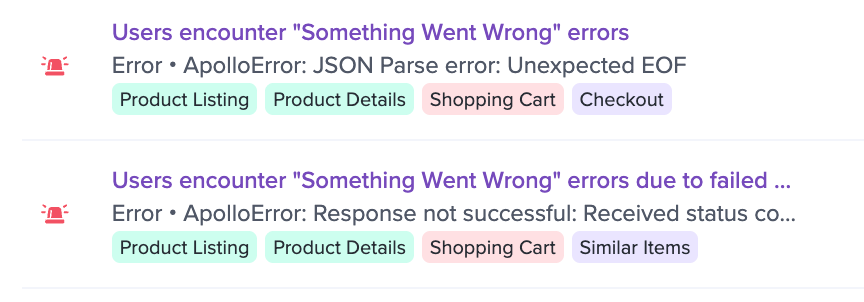
Features appear as tags on each Issue
How Features are generated
Features are generated automatically by Galileo AI. Galileo watches sessions across your application, identifies the distinct product areas users interact with, and generates a Feature for each one along with a description. This generation happens once per app, so you start with a complete set of Features without any manual setup.
Viewing and managing Features
You can view all of your app's Features under Data & Context > Features. Each Feature lists its name and the AI-generated description of the product area it represents.
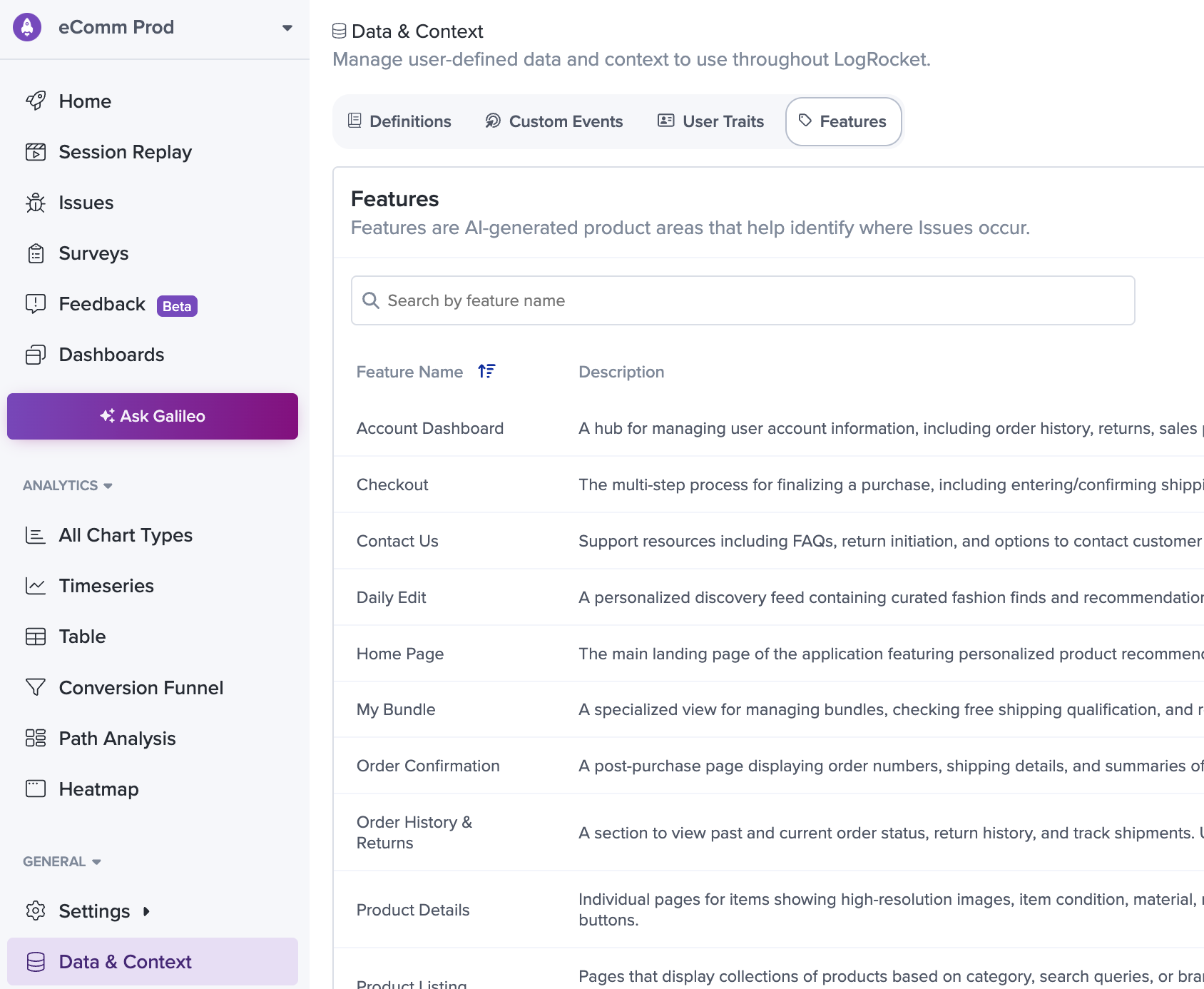
The Features view under Data & Context
Signal details
The evidence shown alongside the analysis depends on which Signal types feed the Issue:
- Errors - the deep-debug view: a sample session playback of a user hitting the error, the stack trace (when you've provided sourcemaps), browser and OS breakdowns, affected sessions, and the histogram of occurrences.
- Feedback - a Mentions tab with the individual pieces of feedback in the cluster, plus the cluster's live stats: mentions, impacted users, and sessions.
- Release Recaps and Streams - the sessions Galileo cited when it validated the finding, and a link back to the Recap or stream run it came from.
If a Signal isn't yet tracked as an Issue, its detail surface shows a prominent Open Issue action. If it is, it shows a link up to the Issue it belongs to.
Session counts on sampled SignalsRelease Recap and Stream Signals are based on a sample of sessions Galileo reviewed rather than an exhaustive event count, so the session count on those Issues is a floor. The real number of affected users may be higher.
The Errors view
The Errors view is the home for Error Signals. It behaves much like the Issues experience you may know from before: every error group, with its stats, histogram, sessions, custom grouping conditions, and the deep-debug detail surface. From here you can configure Errors Digests and open an Issue from any Error.
URL grouping configurations
Network error Signals support optional URL grouping configurations, adjustable in the Errors settings view. This gives better visibility into the scope of problems in apps with subdomains or domain extensions that represent the same underlying experience.
Exclude URL Subdomains should be enabled when an API's multiple subdomains represent the same basic API — for example, when account keys are used as subdomains, like customer1.app.com/foo/bar and customer2.app.com/foo/bar. This groups across subdomains as *.app.com/foo/bar.
Exclude URL Domain Extensions should be enabled when an API uses multiple domain extensions that all represent the same basic API, such as app.com/foo/bar and app.co.uk/foo/bar. This groups across domain extensions as app.*/foo/bar.
High-Volume Boost
For customers with more than 1M monthly sessions, enabling High-Volume Boost increases the speed at which Errors and Issues load across the app by querying in a way tuned for higher event counts. This configuration is not recommended for customers with fewer than 1M monthly sessions.
Platform
Each Error Signal is comprised of events from a single platform — Browser, iOS, or Android — and you can filter by platform. Because React Native compiles to native code, apps using the React Native SDK will find errors under the iOS and Android platforms.
Retention
Issues and Signals are retained for 1 month from the last instance. If a problem stops occurring, it remains available for 1 month after its last occurrence — so an Issue that auto-resolves after 7 days of inactivity is still viewable for the rest of the retention window. This retention is independent of your organization's session retention.
Plan availabilityNon-JavaScript Error Signal types — Network Errors, Rage Clicks, Dead Clicks, Frustrating Network Requests, Error States, and Mobile Crashes — are available on Pro and Enterprise plans only.
Auto-dispatch coding agents
When enabled in Settings → Issues Settings, LogRocket automatically launches a Cursor/Claude Agent whenever Galileo AI opens an Issue from a new severe Signal — sending the same Galileo-generated debug package used for manual dispatch and opening a pull request when the agent finishes. Auto-dispatch requires Enable Galileo Access and a project-wide Cursor or Claude API key configured under Settings → Integrations → Coding Tools. It uses the team default API key only. See Dispatch a Cloud Agent, and the Cursor or Claude integration docs for setting up an API key and repository access.
Updated 11 days ago