

Claude
Open issues in the Claude CLI, or configure Claude Managed Agents to open pull requests from LogRocket
What the Claude integration does
The Claude integration connects LogRocket to Claude for two things:
- Open issues (locally) in Claude — send an issue's analysis to your local Claude CLI as a prompt, so you can debug and fix it interactively. This is a personal, one-click setting — no API key required.
- Claude Managed Agents — send an issue to Claude to launch a managed agent that works the issue in the cloud and opens a pull request, without you leaving LogRocket. This requires a Claude API key and, for private repositories, a GitHub personal access token.
Setup
Go to Settings → Integrations, click the Claude card, and configure the sections you need.
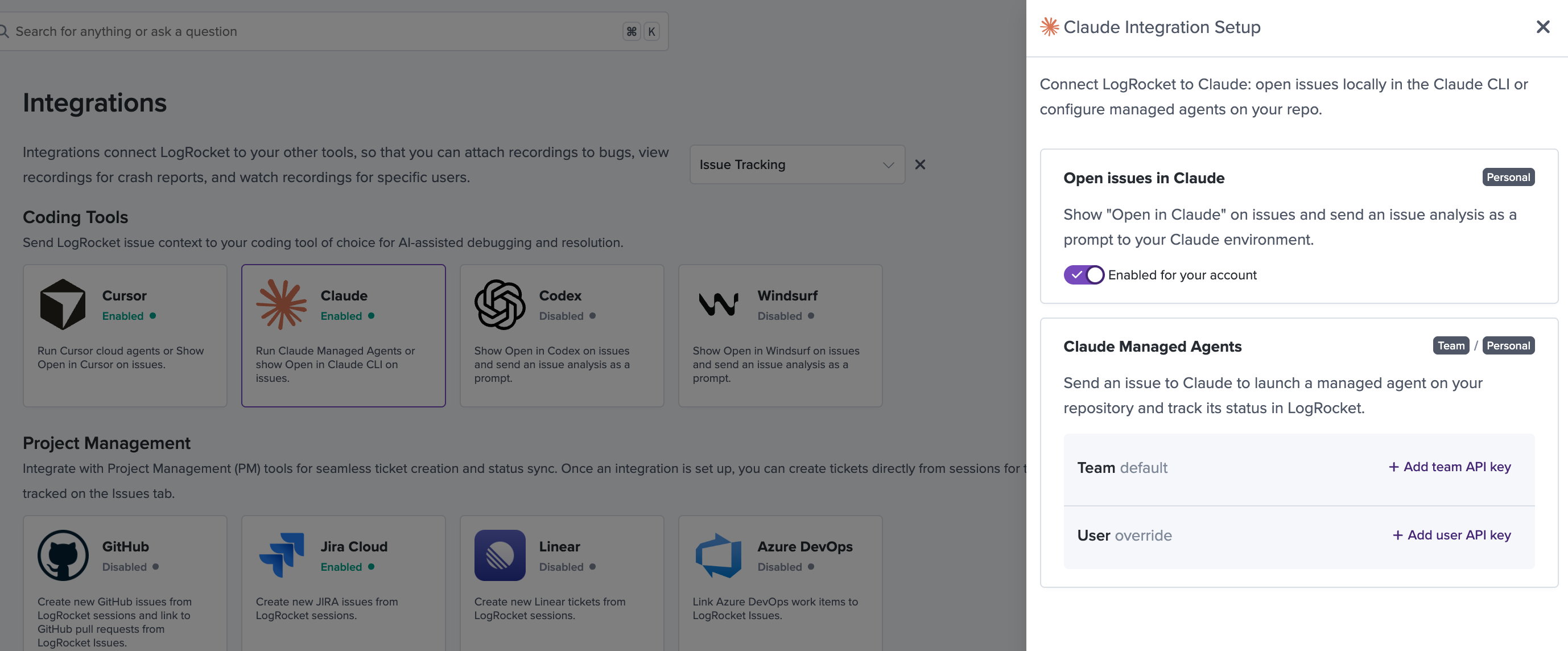
Open issues in Claude
This section is a personal setting — it only affects your own account, and no admin setup is required.
Toggle Enabled for your account to show Open in Claude on issues. Selecting it sends an issue analysis to your local Claude CLI as a prepared prompt. See Open in an Agent Coding Tool for how this works day-to-day.
Claude Managed Agents
This section configures the ability to dispatch a Claude Managed Agent directly from a LogRocket issue. It can be configured at the Team level (an admin sets a default for the whole project) or overridden per-user.
Pull request statusesYou also need the GitHub integration connected if you want the pull request an agent opens — and its status — to appear on the Issue. Agents will still run and open pull requests without it; you just won't see them in LogRocket.
Team default
| Field | What to enter |
|---|---|
| Claude API Key | Generate a key in your Claude account settings. Once entered, the Model dropdown loads the models available to that key. |
| Model | Choose which Claude model runs your managed agents. (Disabled until a valid API key is entered above) |
| GitHub Personal Access Token (optional) | Recommended for private repositories. See Creating a GitHub personal access token for Claude below. This token is stored as a GitHub MCP credential in your Claude vault — not in LogRocket — so you can also configure authentication directly in the Claude vault instead, later. |
| Repository URL | The repository the agent should work in, e.g. https://github.com/your-org/your-repo. |
Claude webhook
LogRocket tracks a managed agent's status by receiving updates from Claude over a webhook. To wire this up:
- Copy the Webhook URL shown in the LogRocket modal (it looks like
https://api.logrocket.com/v1/claude-cloud-agent-webhook/<id>). - Create a webhook in the Claude Console and paste that exact URL in as its target.
- Claude shows you a signing secret when the webhook is created — it starts with
whsec_and is only shown once. Copy it. (If you lose the signing secret, delete and recreate the webhook to get a new one.) - Paste the signing secret into the Webhook signing secret field in LogRocket, then click Save.
An Advanced section is also available if you need to fine-tune the managed agent configuration beyond the defaults above.
User override
Any user can add a personal Claude API key that overrides the team default for the managed agents they dispatch themselves — click + Add user API key under User override. This works the same way personal API key overrides do for Cursor: it only applies to manual dispatch, not auto-dispatch.
Creating a GitHub personal access token for Claude
A Claude Managed Agent needs its own GitHub credentials to read from and push to a private repository — LogRocket doesn't proxy GitHub access on the agent's behalf. Claude's GitHub MCP integration requires a fine-grained personal access token, not a classic token, because only fine-grained tokens can be scoped to a specific repository.
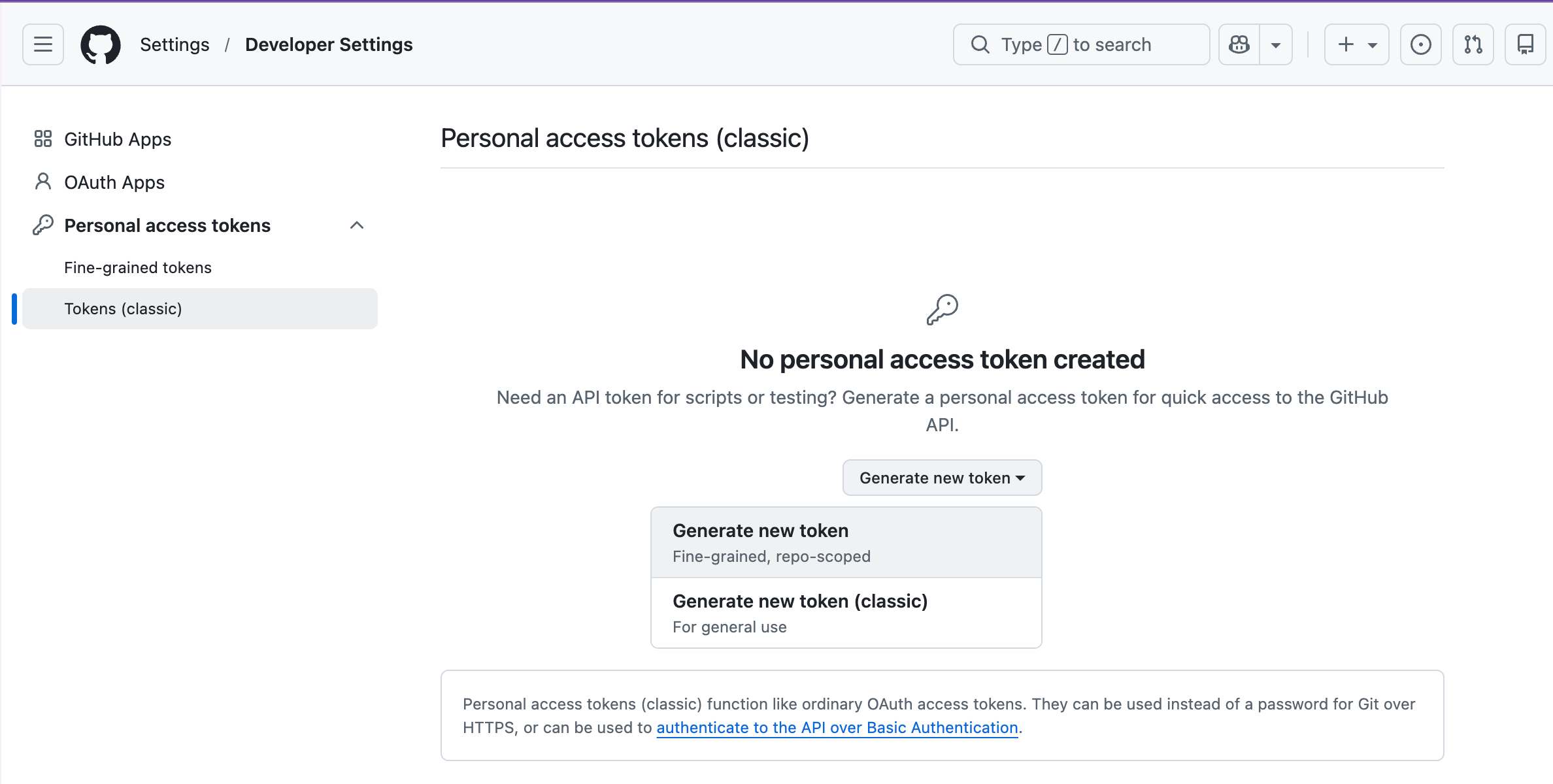
Step 1: In GitHub, go to Settings → Developer settings → Personal access tokens → Fine-grained tokens, then click Generate new token.
Step 2: Set Resource owner to the GitHub organization (or your personal account) that owns the repository.
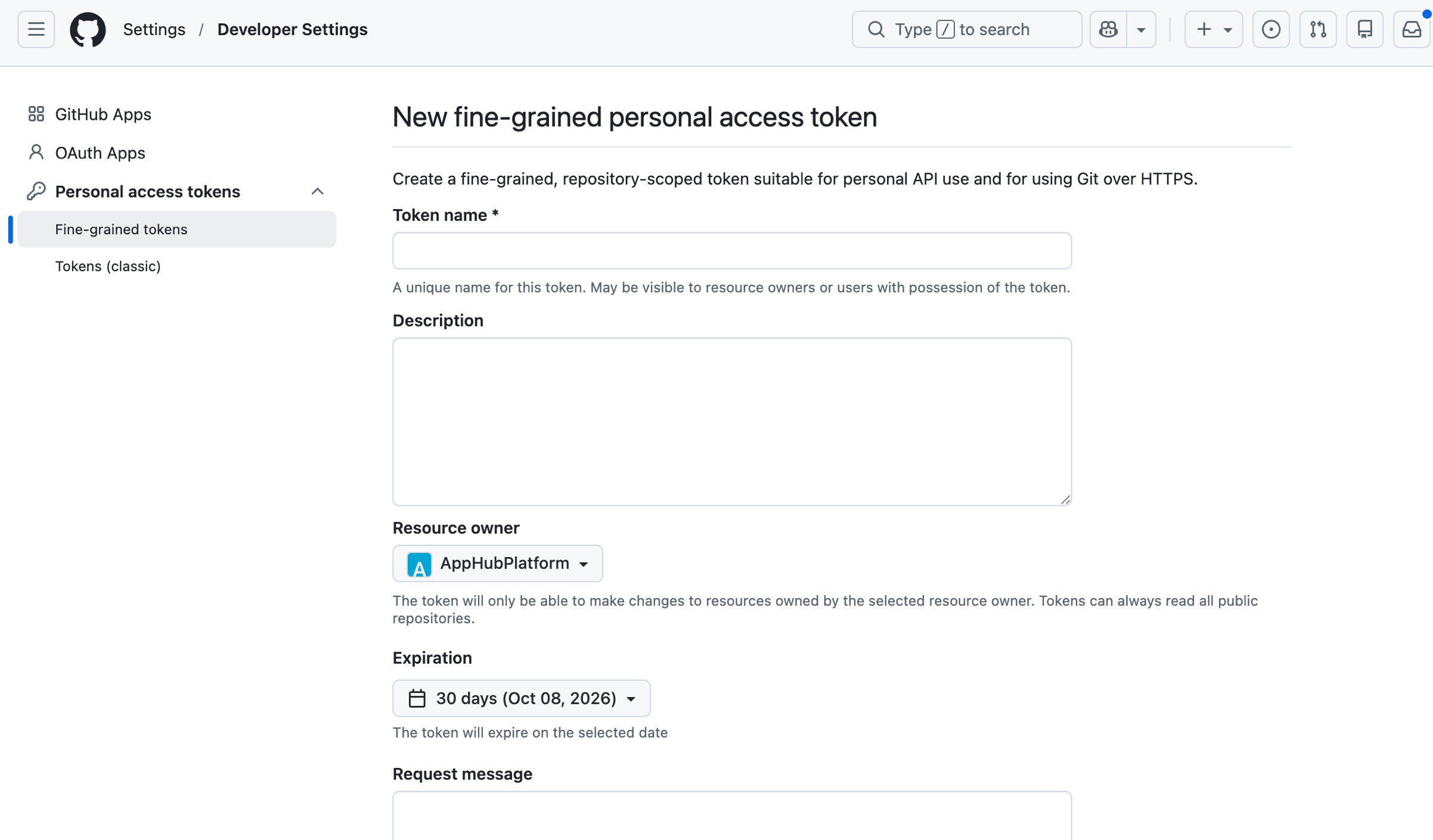
Step 3: Set an Expiration. Fine-grained tokens can't be set to never expire, so plan to rotate this before it lapses — see Troubleshooting.
Step 4: Under Repository access, choose Only select repositories and pick the repository (or repositories) you want the agent to access.
Step 5: Under Permissions → Repositories, set:
| Permission | Access |
|---|---|
| Contents | Read and write |
| Metadata | Read-only (required — GitHub sets this automatically) |
| Pull requests | Read and write |
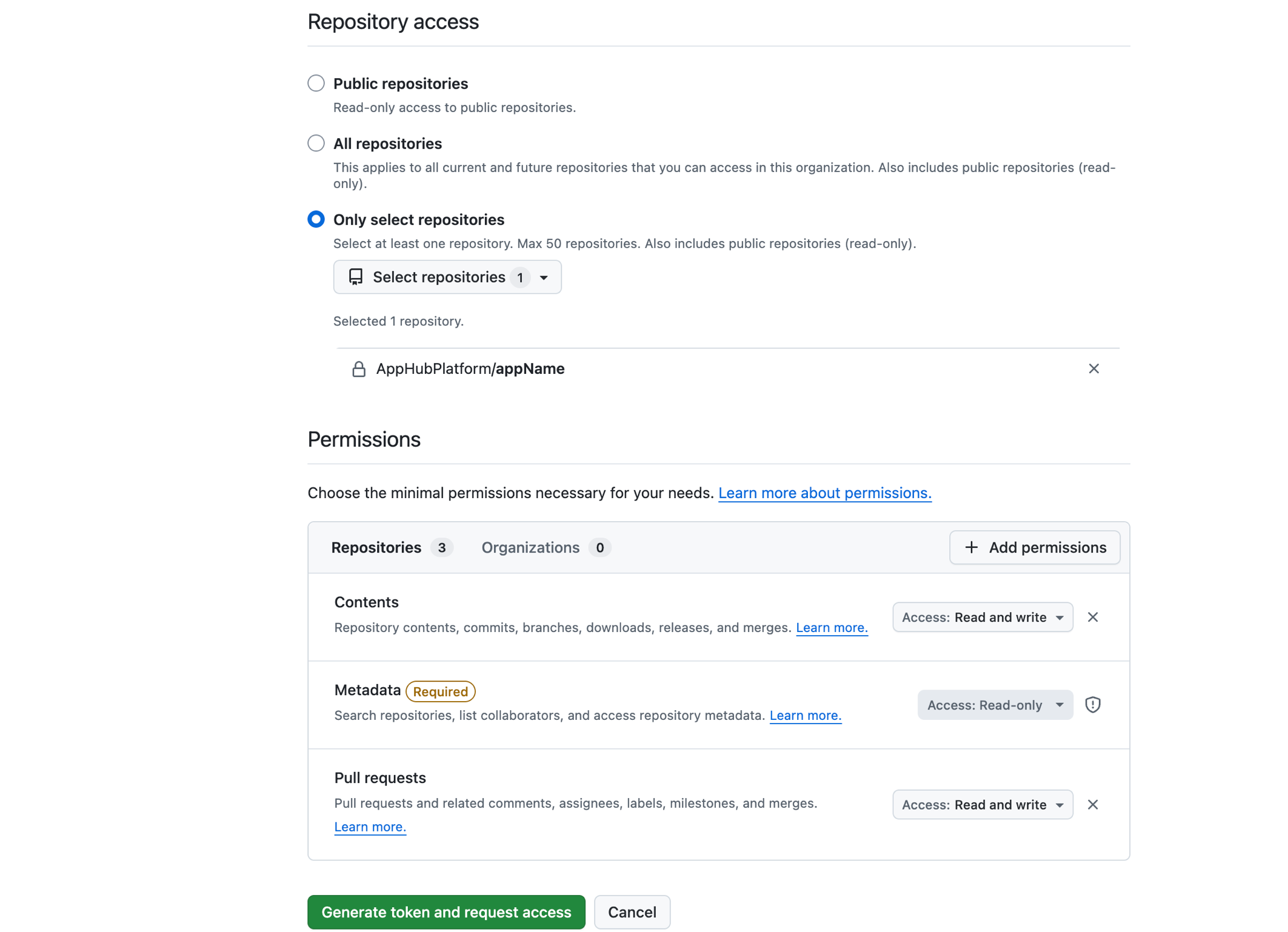
Step 6: Click Generate token and request access.
If the repository belongs to an organization, the button may read request access rather than generate token outright — many organizations require an owner to approve fine-grained tokens before they can access org repositories. If your token shows as pending, ask an org owner to approve it in the organization's Personal access tokens settings.
Step 7: Copy the generated token (GitHub only shows it once) and paste it into the GitHub Personal Access Token field in LogRocket's Claude Managed Agents setup, or configure it directly as a GitHub MCP credential in your Claude vault.
Troubleshooting
"Open in Claude" doesn't appear on issues. Check that Open issues in Claude is toggled on for your account under Settings → Integrations → Claude. This is a per-user setting — a teammate enabling it doesn't enable it for you.
The Model dropdown stays disabled. It only loads after a valid Claude API key is entered and saved in the Claude Managed Agents section. If it's still empty after entering a key, double check the key hasn't been revoked in your Claude account settings.
The managed agent fails immediately, or can't push to the repository. Usually a GitHub credentials problem:
- Confirm a GitHub personal access token is configured — either pasted into LogRocket's GitHub Personal Access Token field, or set up directly as a GitHub MCP credential in your Claude vault.
- Confirm the token is a fine-grained token, scoped to include the repository in question, with Contents and Pull requests set to Read and write.
- Check the token hasn't expired — fine-grained tokens always have an expiration date.
- If the repository belongs to an organization, confirm an org owner approved the token request. A pending, unapproved token can't access the repository.
I don't see a pull request from a managed agent on the Issue. Pull request tracking on Issues requires the GitHub integration to be connected separately from the Claude integration. The agent still opens the PR in GitHub either way — see GitHub → Troubleshooting.
Agent status isn't updating in LogRocket. Status updates arrive over the Claude webhook. Confirm the webhook is still active in the Claude Console, that its target URL exactly matches the Webhook URL shown in LogRocket, and that the signing secret in LogRocket matches the one Claude issued when the webhook was created.
I don't see the Claude card in Settings → Integrations. Make sure you're in the right project, and that your role allows managing integrations.
Related
Updated about 1 month ago