

Azure Monitor
Integrating logs from Microsoft Azure into LogRocket
View logs from Microsoft Azure within LogRocket
With our Microsoft Azure integration, you can view relevant logs from Azure Monitor directly within a network request in a LogRocket session replay so that you can see the underlying cause of a slow or broken network request even faster.
Visit the "Settings" page in LogRocket and click "Integrations". Scroll down to find the "Microsoft Azure" card (within "Backend Integrations").
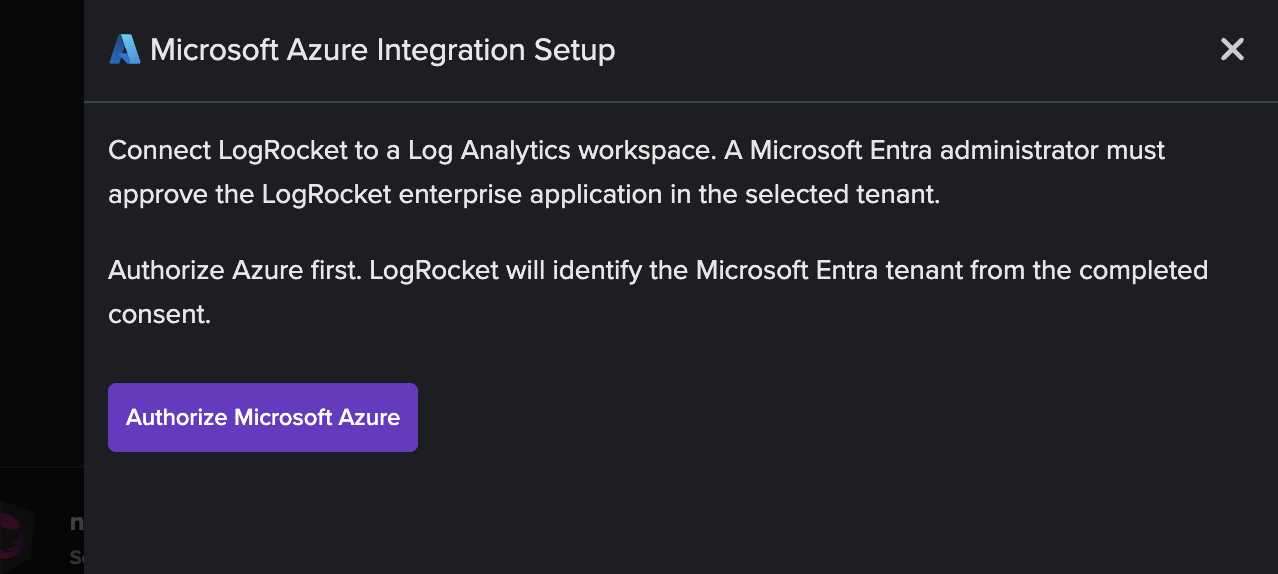
Follow the instructions to configure this integration:
- Select "Authorize Microsoft Azure" and sign in with a Microsoft Entra administrator who can grant tenant-wide admin consent. The consent flow verifies your Azure tenant ownership, and adds a service principal with Log Analytics read permissions to the tenant.
- To configure the integration with access to your target Log Analytics workspace, copy and enter its ID from the Azure portal.
- With the target workspace selected, assign the LogRocket enterprise application the "Log Analytics Data Reader" role. An Azure Owner or User Access Administrator can do this from the workspace "Access control (IAM)" page, or with the Cloud Shell script in the integration settings.
- Optionally add URL filter and Kusto query pairs. Each pair matches a request URL and runs that log query.
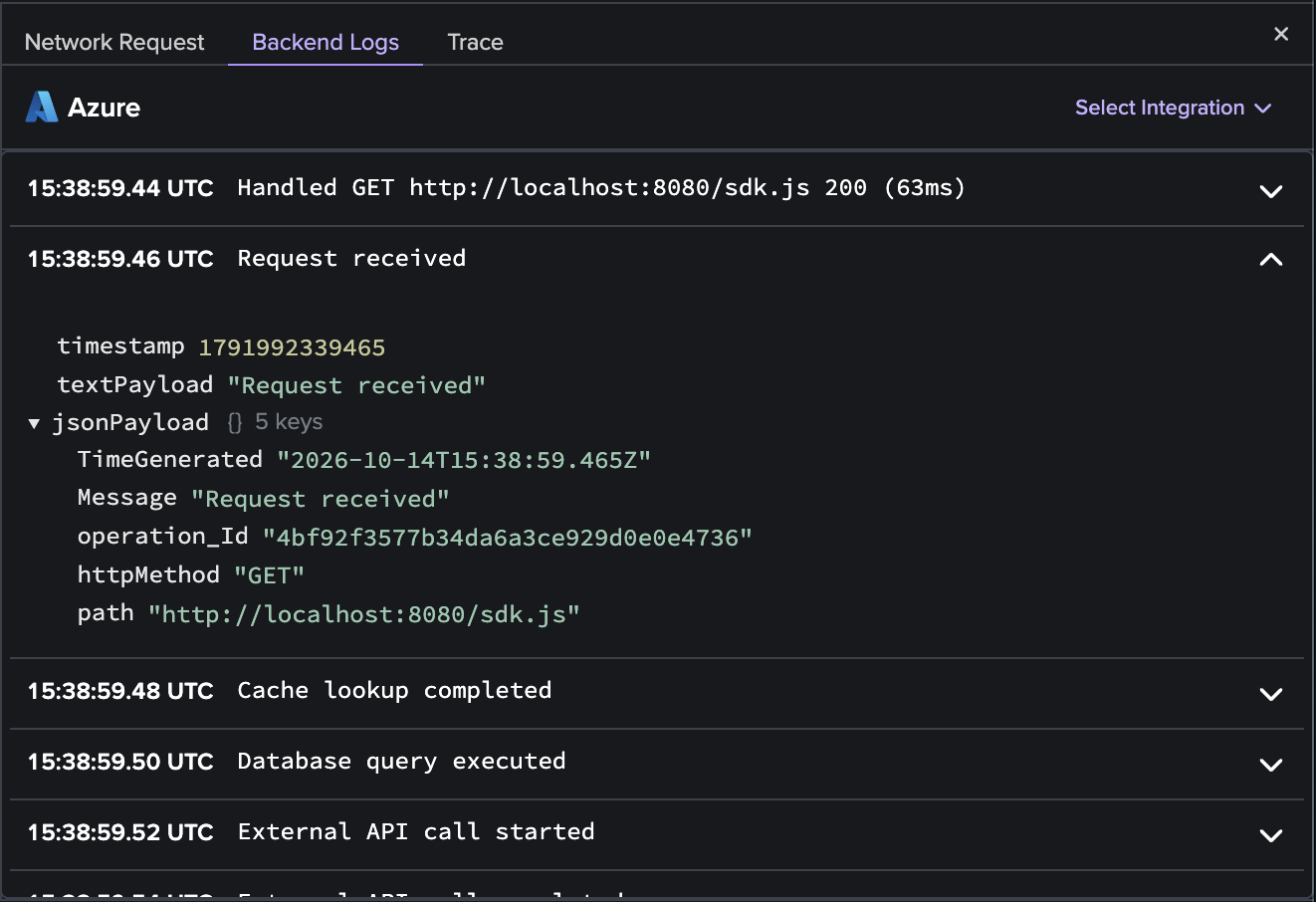
Once configured, you will see Azure Monitor logs within relevant network requests in LogRocket.
Custom parameters
To help you query the most relevant logs within Azure Monitor, you can also choose to add custom parameters to your log query based on the network request. The parameters you can select from are as follows:
| Parameter | Description |
|---|---|
request.url | The full request URL |
request.method | The HTTP method of the request |
request.referrer | The request's referrer |
request.header.* | The full value of a request header (if present). For example, to retrieve the value of the accept header, specify request.header.accept. |
request.body.* | The full value of the specified body property in the request (only retrieves a value if the body is JSON and the property is present). E.g., to retrieve the value of a user property in the body, specify request.body.user (nested properties can be accessed as well) |
response.status | The HTTP status of the response |
response.header.* | The full value of a response header (if present). Behavior is identical to request headers above. |
response.body.* | The full value of the specified body property in the response (only retrieves a value if the body is JSON and the property is present). Behavior is identical to request body above. |
resource.mime_type | The MIME type of the resource |
resource.initiator_type | The entity or element that triggered this request |
You can use any of these within the Log Query that is configured in the Azure Integration Setup on the Settings page for the integration by wrapping them in double curly braces (ex. {{response.status}}). If a particular variable is not available for a specific request, LogRocket will not try to run the query on Azure.
Updated 32 minutes ago