

Automations [Beta]
If you can ask it, you can automate it.
Automations run Galileo on a trigger instead of on demand. You write instructions in plain language, choose what starts a run, and choose where results go. Each run reads your LogRocket data, decides what's worth reporting, and posts to Slack, Microsoft Teams, email, or your own endpoint.
Currently in Private BetaAutomations is currently turned on per org. Get in touch with your Customer Success Manager or [email protected] to access.
How an automation works
Every automation has three parts.
| Part | What it does | Options today |
|---|---|---|
| Trigger | Starts a run | Schedule, Webhook, Run now (manual) |
| Instructions | Tell Galileo what to look at, what counts as worth reporting, and what to send | Plain language |
| Tools | What a run can read, and where it can post | LogRocket data, Slack, Microsoft Teams, email, outbound webhook |
On each run, Galileo reads your instructions and the trigger payload, queries LogRocket data, then either posts through one of the action tools or stays quiet if your instructions say nothing warrants a message. Every run is recorded in Run history, including runs that post nothing.
Create an automation from a template
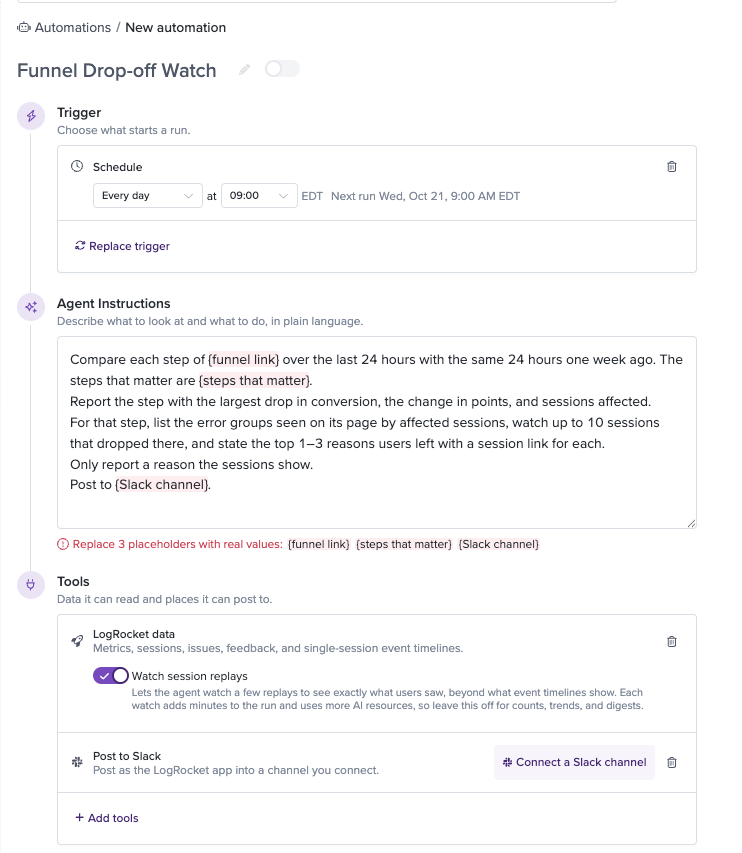
Templates are complete automations with instructions, a trigger, and tools already set. Most only need a Slack channel and a few values filled in.
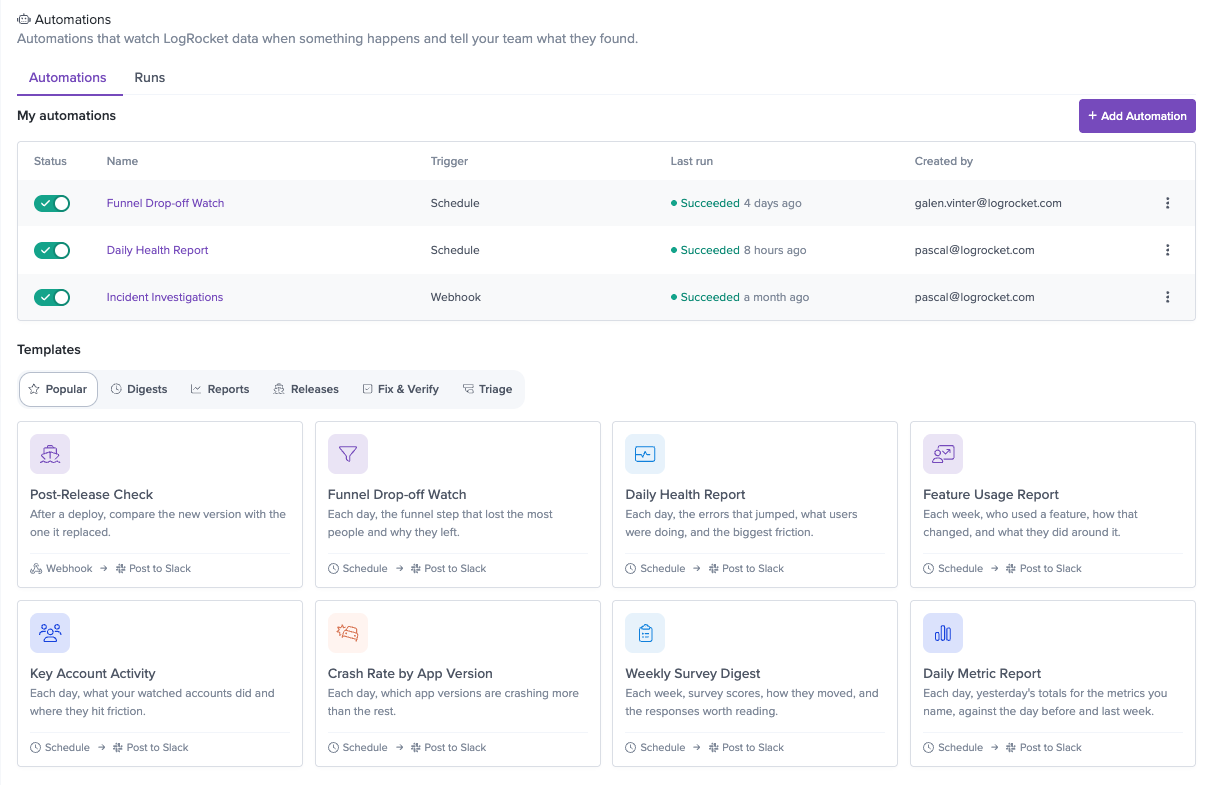
- Open Automations in the left nav.
- Pick a template. Filter by Popular, Digests, Reports, Releases, Triage, or Fix & Verify.
- Replace each placeholder in the instructions. Placeholders appear in braces, like
{Slack channel name}, and are highlighted until you replace them. - Connect the destination under Tools — for example, Connect a Slack channel.
- Click Create automation.
Create an automation from scratch
- Open Automations and click Add Automation.
- Name the automation.
- Under Triggers, click Add trigger and choose Schedule or Webhook.
- Under Agent Instructions, describe what to look at and what to do.
- Under Tools, click Add tools and add LogRocket data plus at least one destination.
- Click Create automation, then Run now to see what it produces.
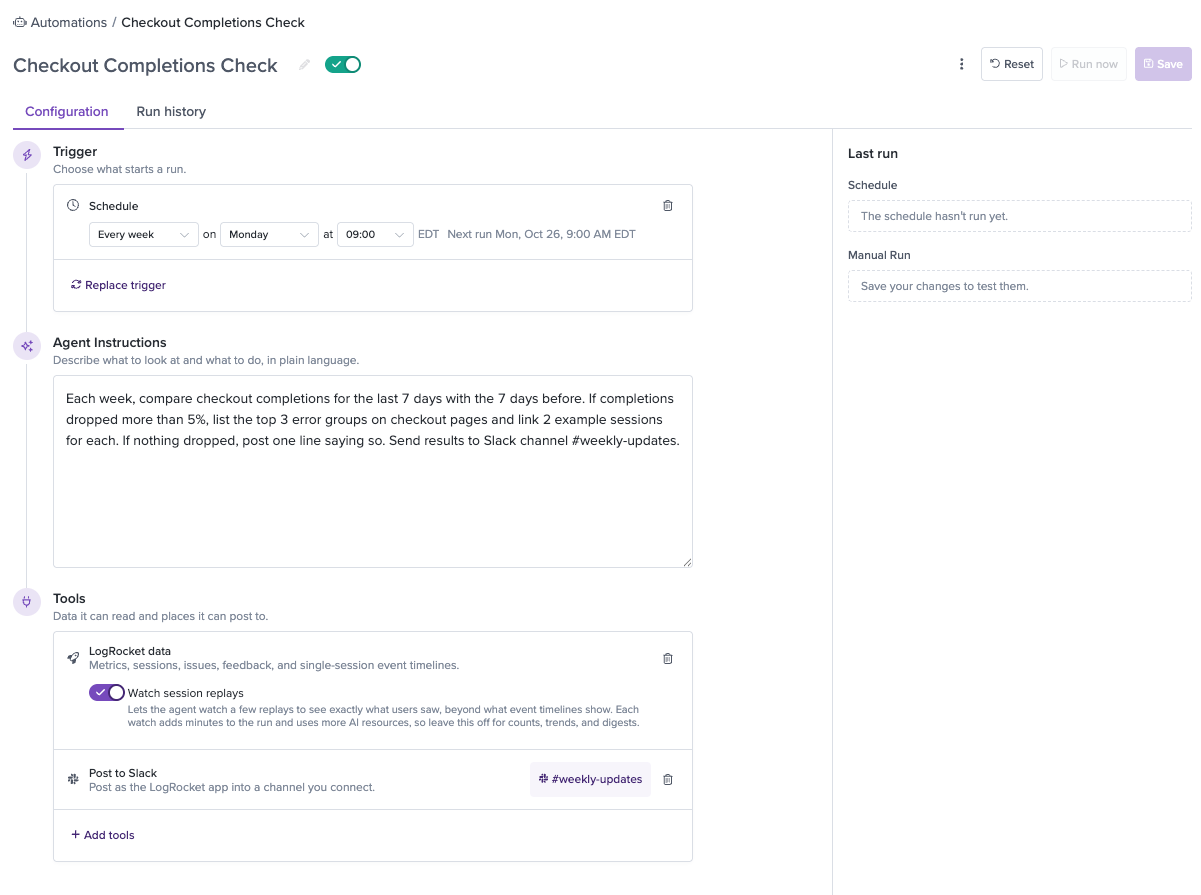
Say you want a Monday report on checkout. Add a Schedule trigger set to every week, Monday at 9:00. Add LogRocket data and Post to Slack. Write:
Each week, compare checkout completions for the last 7 days with the 7 days before. If completions dropped more than 5%, list the top 3 error groups on checkout pages and link 2 example sessions for each. If nothing dropped, post one line saying so. Send results to Slack channel #weekly-updates.
Tips to write instructions that work
Galileo follows your instructions literally, and nobody is in the loop to answer questions mid-run.
- Name the window and the comparison. "Last 7 days vs. the prior 7 days," not "recently."
- Set thresholds. "Flag a drop of 3 points or more with at least 200 users," not "flag big drops."
- Say what to do on a quiet run. Either "post one line saying nothing changed" or "send nothing." Without this, Galileo decides.
- Specify the output shape. First line, number of items, what goes in a thread.
- Exclude internal traffic. For example, "exclude users with emails ending in @yourcompany.com."
- Use defined events and URL patterns. Specify a scope to keep the agent's focus within.
Triggers
Schedule
Runs every hour, day, or week at the time you choose.
- Times are on the half hour (:00 or :30).
- The schedule uses the time zone of the browser that saved it.
- A run can start up to 15 minutes after the scheduled time.
Webhook
Runs each time an HTTP POST reaches the automation's webhook URL. Use it to start a run from CI/CD, a deploy, or any tool that can send a request.
- Add a Webhook trigger and click Create automation. The webhook URL is created on save.
- Copy the Webhook URL from the trigger.
- Send a
POSTto it from your system.
curl -X POST "<your webhook URL>" \
  -H "Content-Type: application/json" \
-d '{"version": "4.12.0", "environment": "production", "previous_version": "4.11.2"}'- The request body becomes the trigger payload. Refer to its fields in your instructions — for example, "Read
versionfrom the payload." - A JSON object is passed as-is. Other bodies are passed as text.
- Bodies over 64 KB are truncated.
- The endpoint responds
202once the run is queued.
Run now
Every automation can be run manually with Run now, whether or not it has a trigger. Runs started this way are real runs: they post to your destinations.
Tools
LogRocket data
Lets a run query your project: metrics, breakdowns, sessions, error groups, session event timelines, user details, surveys, and feedback.
Watch session replays (off by default) lets Galileo watch up to 10 session replays per run to see what users saw, beyond what event timelines show. Each watch adds minutes to the run. Leave it off for counts, trends, and digests.
Post to Slack
Posts as the LogRocket app to one channel.
- Click Connect a Slack channel and choose the channel.
- For a private channel, invite the LogRocket app to it.
A run can post up to 3 Slack messages total. Follow-up messages can thread under the first one.
Post to Microsoft Teams
Posts to a Teams channel through a Teams Workflow.
- In Teams, go to the channel, open the ··· menu, and select Workflows.
- Select Send webhook alerts to a channel and save the workflow.
- Copy the webhook URL and paste it into the automation.
Microsoft 365 Connector URLs (webhook.office.com) are deprecated and not accepted. A run can post up to 3 messages.
Send email
Emails the recipients you choose. Recipients must be members of your LogRocket organization. Emails come from LogRocket Automation – {automation name} and link back to the automation and run. A run can send up to 3 emails.
Outbound webhook
Sends a JSON POST to your endpoint. Use it to feed results into your own systems.
{
  "type": "LogRocketAutomation",
  "appID": "your-org/your-app",
  "automationID": 123,
  "runID": "6f1c…",
  "summary": "Plain-text summary of the finding.",
  "data": { "...": "structured details from the run" },
  "generatedAt": "2026-10-20T13:00:00.000Z"
}
The payload shape is fixed. Galileo fills summary and data based on your instructions. Failed requests are retried up to 3 times.
Run history
Every run is recorded, including runs that post nothing.
- Automations → Runs lists runs across all automations.
- Each automation shows its own run history.
| Status | Meaning |
|---|---|
| Queued | Waiting to start, usually a few seconds |
| Running | In progress |
| Succeeded | Finished. Check Output to see what it found and whether it posted |
| Failed | Stopped before finishing. Run details shows the error |
Run details show the trigger, the trigger payload, start and finish times, time in queue, duration, and the run's output.
Turn off or delete an automation
- Turn off: set the automation to Inactive. Scheduled and webhook triggers stop starting runs. Webhook calls are accepted but don't run.
- Delete: open ··· → Delete. This can't be undone. For a webhook-triggered automation, the webhook URL stops working immediately.
Limits
| Limit | Value |
|---|---|
| Run duration | 10 minutes |
| Slack, Teams messages per run | 3 each |
| Emails per run | 3 |
| Session replays watched per run | 10 (5 per batch) |
| Webhook trigger payload | 64 KB |
| Schedule granularity | 15 minutes |
Troubleshooting
"Automations are not enabled for this project." Automations is in beta. Contact your LogRocket CSM or [email protected].
"The schedule hasn't run yet." Scheduled runs start within 15 minutes of the scheduled time. Check that the automation is Active.
A run succeeded but nothing was posted. Open Run details → Output. The run may have decided nothing met your thresholds, or your instructions said to stay quiet. If you want a message every run, say so in the instructions.
Slack posts fail with "Invite the LogRocket app to the channel." The channel is private or the app was removed. Invite the LogRocket app, then Run now.
Slack posts fail after connecting. Click Choose a different channel and reconnect to refresh permissions.
"Microsoft 365 Connectors are deprecated." Create a Teams Workflow webhook instead (see Post to Microsoft Teams).
The run failed with "Run timed out." The run hit the 10-minute limit. Narrow the instructions, reduce the number of comparisons, or turn off Watch session replays.
The webhook returns {"status": "disabled"}. The automation is Inactive.
The output says data was missing or "nothing found." Galileo doesn't invent data. Check that the events, URL patterns, and traits named in your instructions match your project exactly.
Updated about 2 hours ago